
COD KBM Aim Assist Enhanced
A shareable OmniControl setup. Import it in the app to try it on a new profile - your existing profiles are never touched.

From the author
COD Keyboard & Mouse Aim Assist Enhanced Setup
This OmniControl config converts your keyboard and mouse input into emulated controller input, allowing Call of Duty to treat your input device as a controller and apply controller aim assist. Follow the setup below before using the config. You can then fine-tune the OmniControl sensitivity and response settings to your preference.
Launch Call of Duty without a physical controller connected. Unplug any physical controllers before launching the game. If you need to keep one connected, use HIDHide to hide it so it does not conflict with OmniControl's emulated controller.
Set a Drive A Controller hotkey. Set a global hotkey for Drive A Controller so you can quickly enable and disable controller emulation. We recommend using F5.
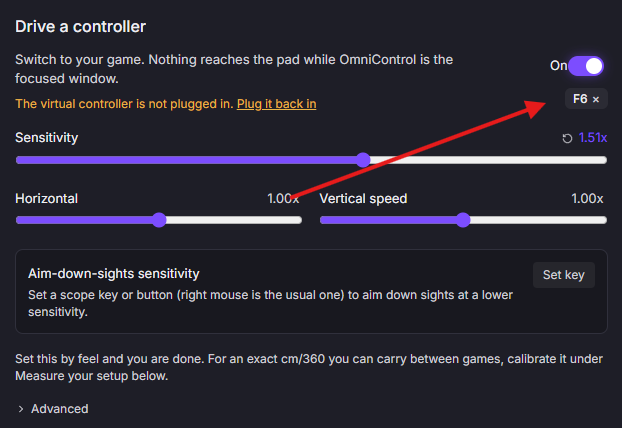
Disable Drive A Controller while navigating menus. Keyboard/mouse and emulated controller input can conflict in Call of Duty's menus. Keep Drive A Controller disabled in menus, then enable it again when entering a match or the Firing Range.
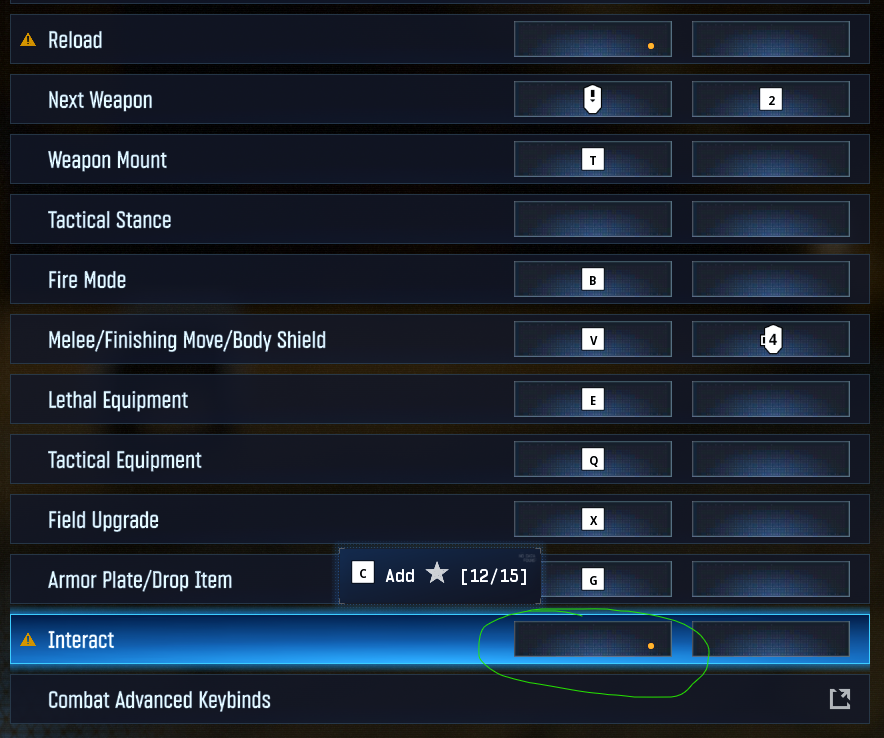
Unbind Interact/Reload from your keyboard controls. Open Call of Duty's Keyboard & Mouse settings and remove your keyboard binding for Interact/Reload. Your interaction input will instead be handled through the emulated controller.
Set your controller deadzone. Go to Controller Settings → Deadzones and set your Right Stick Minimum Deadzone to 0.
Set controller sensitivity to maximum. Set your in-game Horizontal Stick Sensitivity and Vertical Stick Sensitivity to their maximum values. Mouse sensitivity should then be adjusted through OmniControl.
Set your Aim Response Curve to Dynamic. Under Call of Duty's controller aiming settings, set Aim Response Curve Type → Dynamic.
Lock the input device to Controller. Make sure Locked Input Device / Aiming Input Device is set to Controller before testing the config.
Test and fine-tune the config. Enter the Firing Range, enable Drive A Controller, and test your mouse movement and aiming. Adjust the OmniControl sensitivity and other config settings until the movement feels comfortable.
Important: If you do not unbind the keyboard Interact/Reload action, Call of Duty may receive both keyboard and emulated controller inputs. This can cause interactions such as opening crates or picking up loot to behave as if the button is being held instead of tapped.
For the cleanest input, avoid having your physical controller and OmniControl's emulated controller active at the same time. Use your Drive A Controller hotkey whenever you need to switch between normal menu navigation and controller-emulated gameplay.
What this pack changes
- Remap - key / mouse remapping
- Emulation - virtual controller target
- YY Spam -
- Recoil Reducer -
Have the app installed? Use Open in OmniControl below - it jumps straight to the import preview. Otherwise:
- Open OmniControl and go to Profiles (or Game Packs).
- Click Import, then paste the code above into the share-code box.
- Preview what it changes, then create a profile from it.
Importing only ever creates a NEW profile - your existing profiles are never touched.