
· 5 min read
Per-game profiles that switch themselves
A profile holds your whole setup - remaps, curves, trigger feel, emulation output, and KBM calibration. Game Center swaps the right one in the moment a game takes focus.
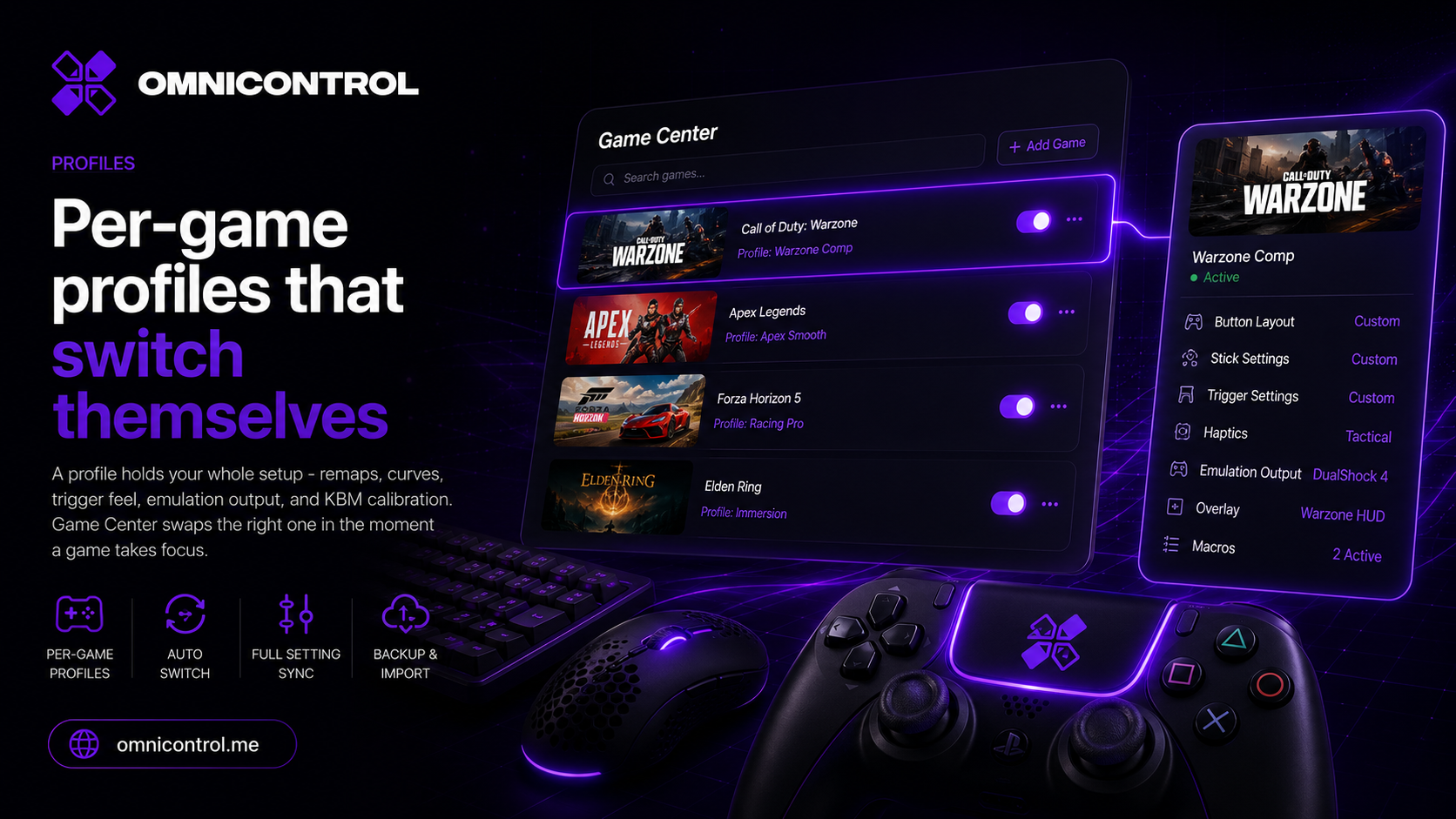
If you play more than one game, you already know the problem. The stick curve that feels right in a racing game is wrong in a shooter. The remap you built for one game fights you in the next. OmniControl solves this by tying your whole configuration to a profile, then switching profiles for you based on which game has focus. No launcher scripts, no alt-tabbing to flip a setting.
What a profile actually holds
A profile is not just a button map. It captures the full state of how a controller behaves, so switching profiles switches everything at once.
- Remaps: any button, stick, trigger, or paddle sent to any input, keyboard key, mouse action, or macro, including shift layers, combos, and turbo.
- Stick curves: response curves (presets like Aggressive or Precision, or a custom hand-drawn curve), deadzone, anti-deadzone, anti-snapback, and per-stick sensitivity.
- Trigger feel: deadzone and travel points, plus DualSense adaptive-trigger effects like resistance and weapon feedback.
- Emulation output: whether the game sees a virtual Xbox 360 or DualShock 4 pad through the ViGEmBus driver.
- KBM calibration: if you drive a virtual pad from keyboard and mouse, the turn-match calibration for that specific game.
- Calibration snapshots: the stick and trigger drift measurements stored by the guided wizard.
Because all of that lives inside the profile, you tune once and the settings stay put. There is no global setting quietly overriding a per-game one.
How the switch happens
Game Center shows your games as a library grid. Each game can be tied to a profile. When a game takes focus - you click into its window - OmniControl loads the matching profile. When you leave the game, it loads back out. The controller's whole behavior changes underneath you without any input from you.
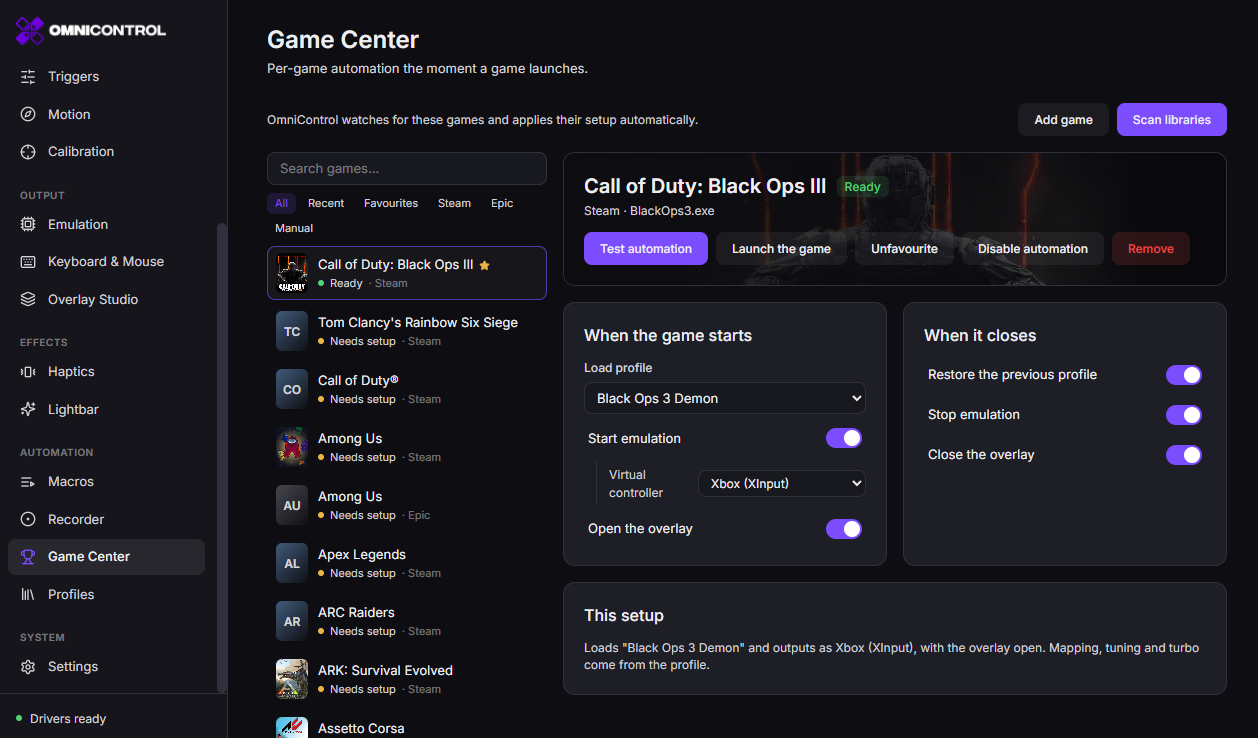
This matters most for the settings that are meaningless in the wrong game. Keyboard and mouse calibration is the clearest example. The turn-match calibration locks to a specific game's turn rate, so it has to load exactly when that game is in front and step aside when it is not. Game Center handles that timing so your aim tracks the mouse in the game you calibrated for, and your gamepad behaves normally everywhere else.
Set up one general profile for everyday use with your controller mapped the way you like it. Games without a specific profile fall back to sensible behavior, and you only build a dedicated profile when a game actually needs one.
Building a profile
Start from the input you use, tune it for the one game, then hand the switching to Game Center.
Pick the game in Game Center
Open Game Center and find the game in the grid. This is the profile you are about to build, and the one that will load when this game takes focus.
Choose the emulation output
Decide what the game should see. Present a virtual Xbox 360 pad for broad compatibility, or a DualShock 4 if the game reads Sony input better. The game sees a genuine Microsoft or Sony controller through ViGEmBus, not an injector.
Set your remaps
Map buttons, sticks, triggers, and paddles to whatever the game needs. Add shift layers or combos if you want more actions than the pad has physical inputs. You can edit live and freeze the map with a hotkey once it feels right.
Tune sticks and triggers
Choose a response curve or draw your own, set deadzones, and dial per-stick sensitivity. On the trigger side, set travel points and, on a DualSense over USB, the adaptive-trigger effect for this game.
Calibrate keyboard and mouse (if you use it)
If this game only accepts a controller and you are driving with keyboard and mouse, run the turn-match calibration. Line up a landmark on screen, turn one full circle in-game, and press F8 to start and stop. That locks your in-game turn rate to the mouse. Move with W+A+S+D on the left stick.
Confirm the profile is tied to the game
Back in Game Center, make sure this profile is attached to the game. From now on it loads when the game takes focus and unloads when you leave.
Where this fits, and where it does not
Per-game profiles do not change what a game allows. Remapping, custom emulation output, and keyboard-to-pad calibration are exactly the kind of changes some competitive titles forbid.
OmniControl is not a tool for defeating anti-cheat, and it contains no evasion. The pack catalog includes keyboard-and-mouse packs for online shooters, Call of Duty among them, and a publisher can penalise your account for playing that way. That risk sits with you as the player. If a game's rules forbid input remapping, do not use it there.
The short version
A profile holds your remaps, stick curves, trigger feel, emulation output, and KBM calibration together as one unit. Game Center watches for a game to take focus and swaps the whole setup in, then swaps it back out when you leave. You build each profile once, tie it to its game, and stop thinking about it. Per-game profiles are part of the core feature set, so you can set this up on the free tier and add the advanced tuning that Pro unlocks as you go.
Join the OmniControl DiscordQuestions, setup help, and release news from the people building it.Tagged Profiles, Game Center, Workflow
More from the blog
Guides · · 6 min read
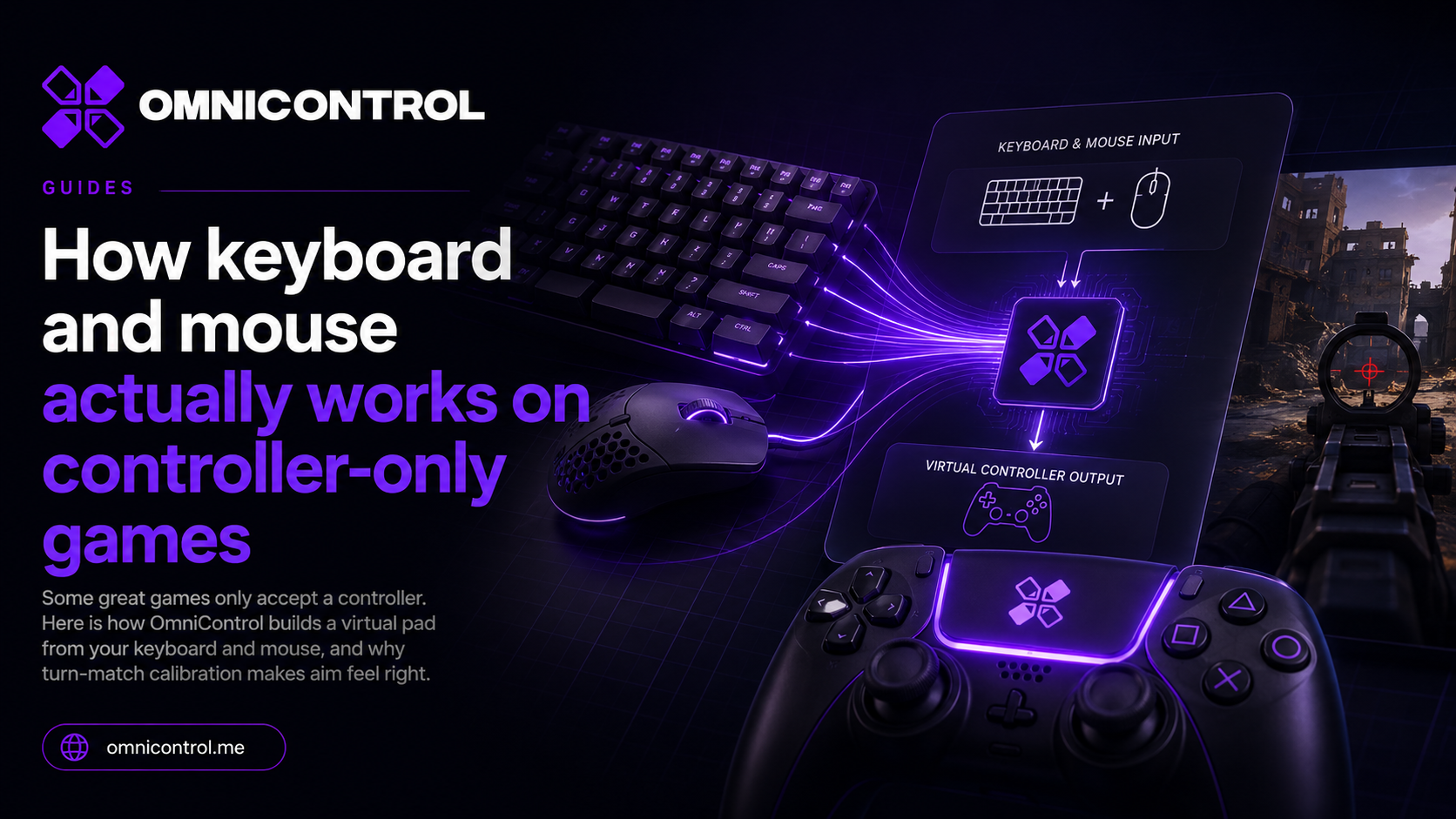
How keyboard and mouse actually works on controller-only games
Some great games only accept a controller. Here is how OmniControl builds a virtual pad from your keyboard and mouse, and why turn-match calibration makes aim feel right.
Guides · · 6 min read
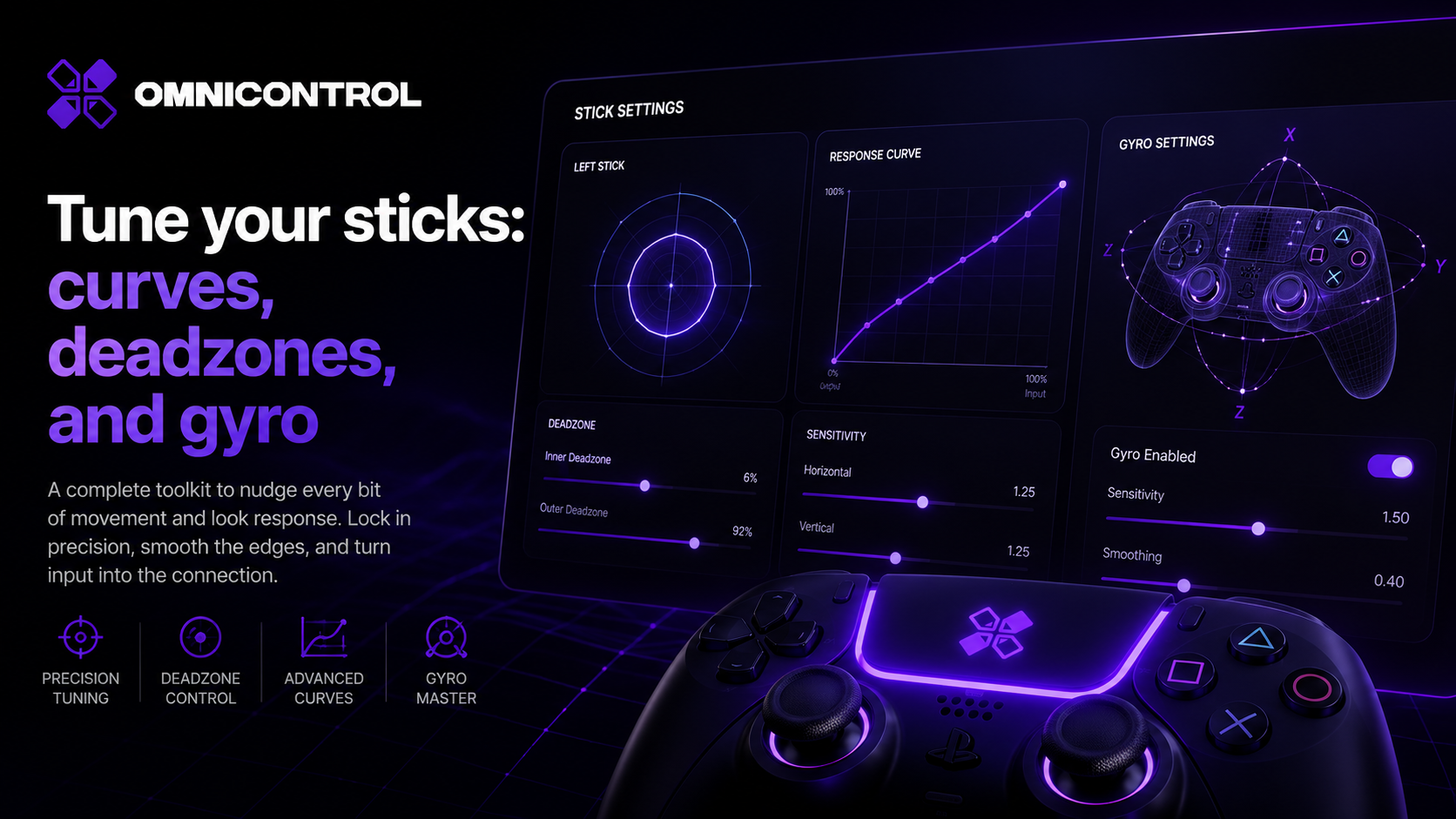
Tune your sticks: curves, deadzones, and gyro
A practical guide to stick tuning in OmniControl: what response curves, deadzones, and anti-snapback each fix, when to reach for them, and how gyro layers on for fine correction.
Deep dives · · 5 min read
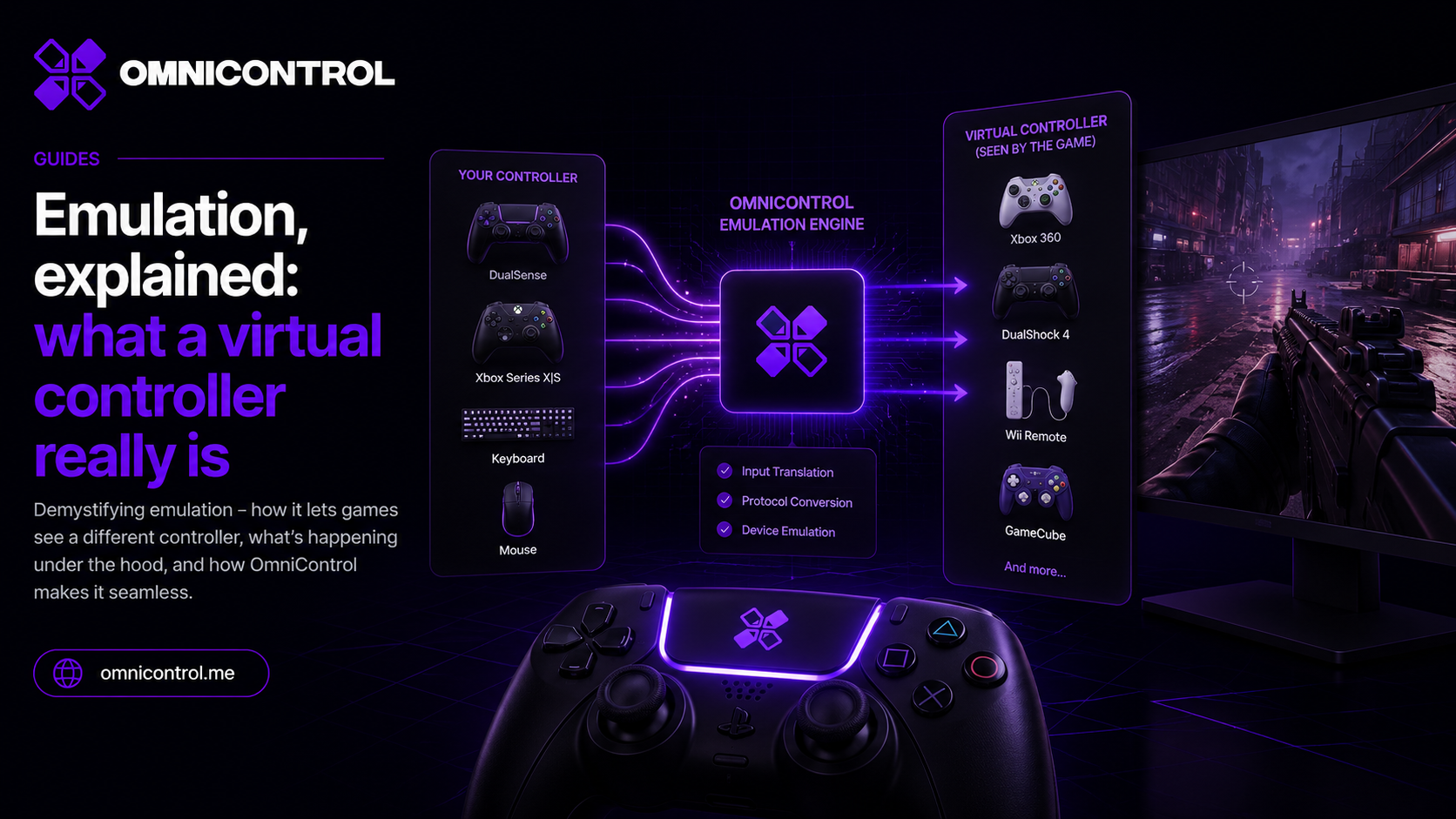
Emulation, explained: what a virtual controller really is
Remapping only helps if the game is listening. Here is how a driver-level virtual Xbox or DualShock 4 makes any pad acceptable to any game, without hooks or hacks.