
Profiles & Game Center
A profile is the saved set of tuning for one game.
Game Center holds your profiles as a library and loads the right one automatically when a game takes focus, so your setup follows the title you are playing.
Overview
Controller profiles let you keep a different setup for every game without redoing work each session. A profile bundles your remaps, stick and trigger feel, emulation output, and Keyboard & Mouse calibration into one saved object tied to a single game. Game Center is the library that stores those profiles and matches them to what you launch.
Profiles and your game library are free, with unlimited profiles. Automatic per-game switching, called Game automation, is a Pro capability that also starts emulation and opens the overlay when a game launches. You can build and switch profiles by hand on the free tier, then upgrade for hands-off automation. See pricing for the Pro plans.
How it works
A profile stores everything you tune for a single game in one place:
- Remaps, shift layers, combos, and turbo
- Stick response curves, deadzones, and per-stick sensitivity
- Trigger travel points and adaptive-trigger feel
- The emulation output the game sees (virtual Xbox 360 or DualShock 4)
- Keyboard & Mouse turn-match calibration and Play Mode setup
- A calibration snapshot of measured stick and trigger drift
Because the profile carries the emulation output and the Keyboard & Mouse calibration, switching games also switches which virtual pad is presented and how the mouse maps to the aim stick.
Game Center shows your games as a library grid. It uses automatic game detection to spot titles and can scan your Steam and Epic libraries, or you can add a game by hand and mark favorites. When a game takes focus, its matching profile loads. With Game automation on, launch also starts emulation and opens the overlay; on exit it restores the previous profile and stops emulation. You do not open a menu mid-session, because the switch follows the foreground window.
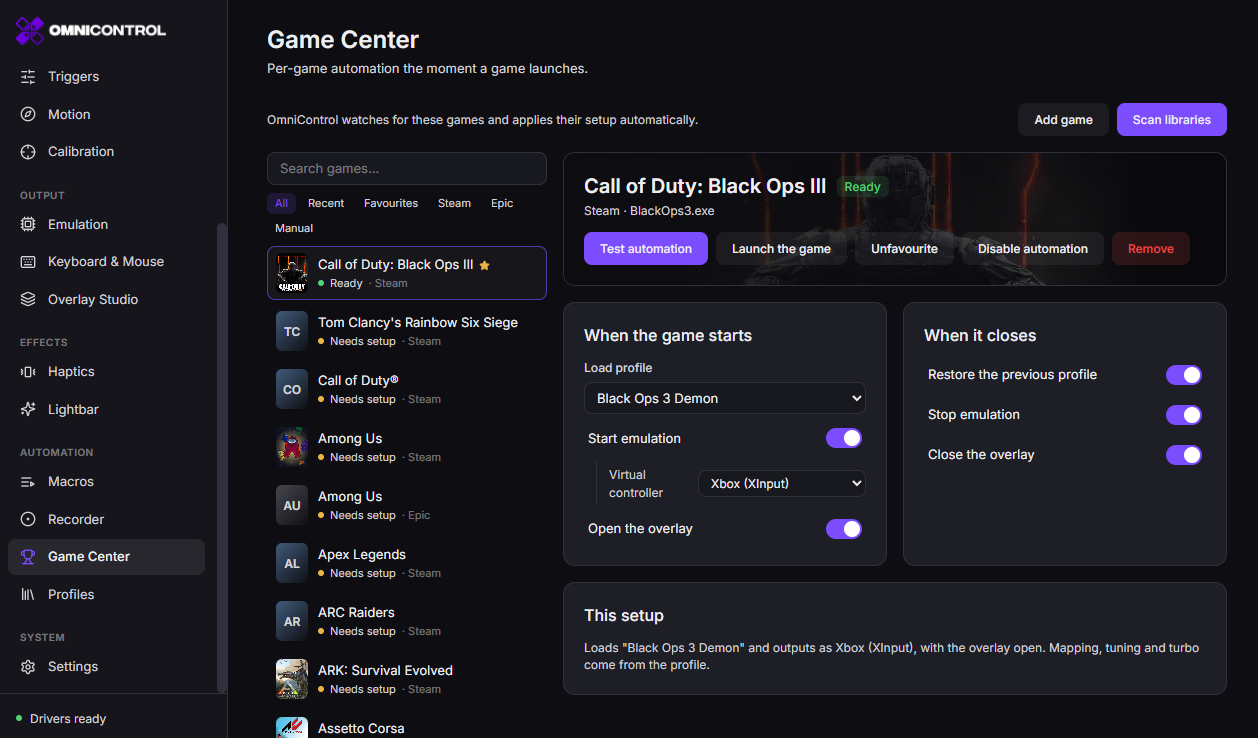
A game maps to a single profile. If you want two setups for the same game, keep the settings you switch between inside that one profile rather than adding the game twice.
Getting started
Add the game
In Game Center, let automatic detection or a library scan find the game, or add it by hand so it appears as a tile in the grid.
Open its profile
Select the tile to open the profile. A new profile starts empty and inherits nothing from other games.
Set the emulation output
Choose the virtual pad the game should see. See Emulation for when to pick Xbox 360 versus DualShock 4.
Tune remaps, sticks, and triggers
Add your remaps, stick curves, and trigger points. These save into this profile only.
Calibrate if needed
Run the calibration wizard to store a drift snapshot, and if you use Keyboard & Mouse, run turn-match so aim tracks the mouse for this game.
Confirm the auto-switch
Launch the game. When it takes focus, the profile loads; when you close or Alt+Tab away, it unloads.
Common use cases
- Keep a controller profile per game so a driving title, a shooter, and a platformer each get their own remaps and stick curves without manual reloading.
- Store one game's Xbox 360 output and another's DualShock 4 output, then let the correct virtual pad appear on focus.
- Save Keyboard & Mouse turn-match and Play Mode per game so each shooter keeps its own cm/360 aim feel.
- Share a tuned setup with a friend, or move it between PCs, using per-profile import and export.
- Track last-used profiles and feature summaries to see at a glance what each game is configured to do.
Best practices
Build one profile per game and resist adding the same title twice. A single profile can hold every mode you need. Set the emulation output first, since remaps and tuning reach the game through that virtual pad. Run calibration before fine tuning so drift correction sits underneath your stick and trigger work rather than fighting it. If you play with Keyboard & Mouse, run turn-match after you settle the game's own controller sensitivity, and redo it any time you change that in-game value.
Turn-match calibration and Play Mode are stored in the profile, so each game keeps its own turn rate and mapping. Change one game's aim feel and the others stay untouched.
Tips
- Favorite the games you play most so they sit at the top of the grid.
- Use import and export to back up a profile before a big retune, so you can roll back.
- Check the feature summary on a profile to confirm which of emulation, remaps, and Keyboard & Mouse are active before you launch.
- Mouse DPI is stored per mouse in Settings, not in a profile, so measuring it once carries across every game.
Troubleshooting
The profile does not load on focus. Confirm the game is added as a tile and that the window actually took foreground focus. Automatic switching is part of Game automation, which is Pro; on the free tier you switch profiles with one click yourself.
Emulation did not start with the game. Auto-start emulation is a Game automation behavior. Without it, open the profile and enable emulation by hand, or upgrade to Pro for launch automation.
The wrong virtual pad appears in-game. Open the profile and check the emulation output field, since that value is saved per profile and travels with the game.
Aim drifts after the mouse stops. The Keyboard & Mouse turn rate is not calibrated for this game. Run turn-match again: line up a landmark, press F8, turn one full circle, and press F8 to lock it.
A game refuses the virtual controller. Some titles, usually those with anti-cheat, reject virtual pads on purpose. OmniControl does not bypass that, and the profile will not work there.
Anti-cheat boundary
OmniControl contains no anti-cheat evasion. Do not use profiles, emulation, or Keyboard & Mouse to bypass anti-cheat protection. The pack catalog includes keyboard-and-mouse packs for online first-person shooters, and a publisher can penalise your account for playing that way. That risk sits with you as the player, so check a game's rules before you play.
Emulation presents a genuine virtual device through the ViGEmBus driver rather than injecting into a game, but that does not make it appropriate for protected competitive titles. If a game blocks virtual controllers, that is expected and OmniControl does not work around it. Keep profiles to games where a controller or virtual pad is welcome.
FAQ
Are profiles free?
Yes. Profiles and your game library are free, with unlimited profiles and one-click switching. Automatic per-game switching, Game automation, is Pro.
How many profiles can I create?
There is no limit. Build one per game and switch between them as often as you like.
Does switching profiles change the virtual controller?
Yes. The emulation output is saved in each profile, so changing games can also change whether a virtual Xbox 360 or DualShock 4 is presented. See Emulation.
Can I use two setups for the same game?
Keep both inside one profile rather than adding the game twice. A profile holds every mode you switch between.
Where is my mouse DPI stored?
DPI is stored per mouse in Settings, not in a profile, so it applies across every game once measured. Read more in Calibration.
Can I move a profile to another PC?
Yes. Each profile supports import and export, so you can back it up or transfer it. Pair it with Macros and remapping that live inside the same profile.